> ## Documentation Index
> Fetch the complete documentation index at: https://docs.getmaito.com/docs/llms.txt
> Use this file to discover all available pages before exploring further.
# Introduction
> Use the Maito REST API from your own backend, scripts, internal tools, or custom newsletter website proxy.
The API is intended for customer-owned integrations. For terminal workflows and AI coding agents, use the [CLI](/docs/cli/introduction).
Maito API keys are server-side secrets. Never use an API key in browser JavaScript, static site code, mobile app bundles, or public repositories.
## Authentication
Create an API key in Maito and send it as a Bearer token.
1. Open Maito and go to **Settings**.
2. Open **API Keys** in the Developer section.
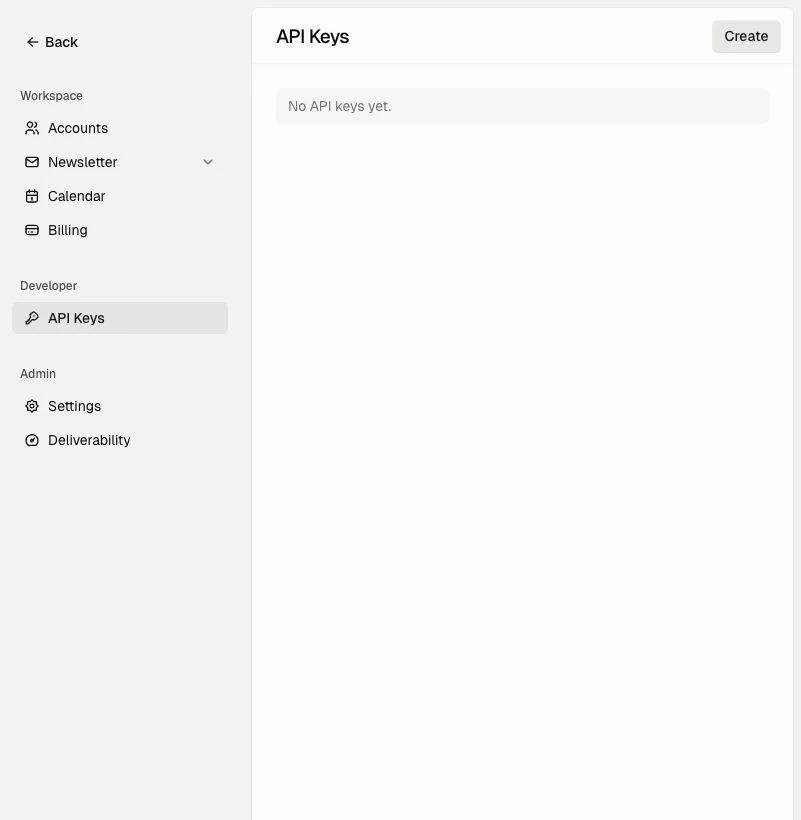 3. Click **Create**.
4. Give the key a clear name, such as `Production`, `Docs website`, or `Internal tool`.
5. Choose an expiration policy.
3. Click **Create**.
4. Give the key a clear name, such as `Production`, `Docs website`, or `Internal tool`.
5. Choose an expiration policy.
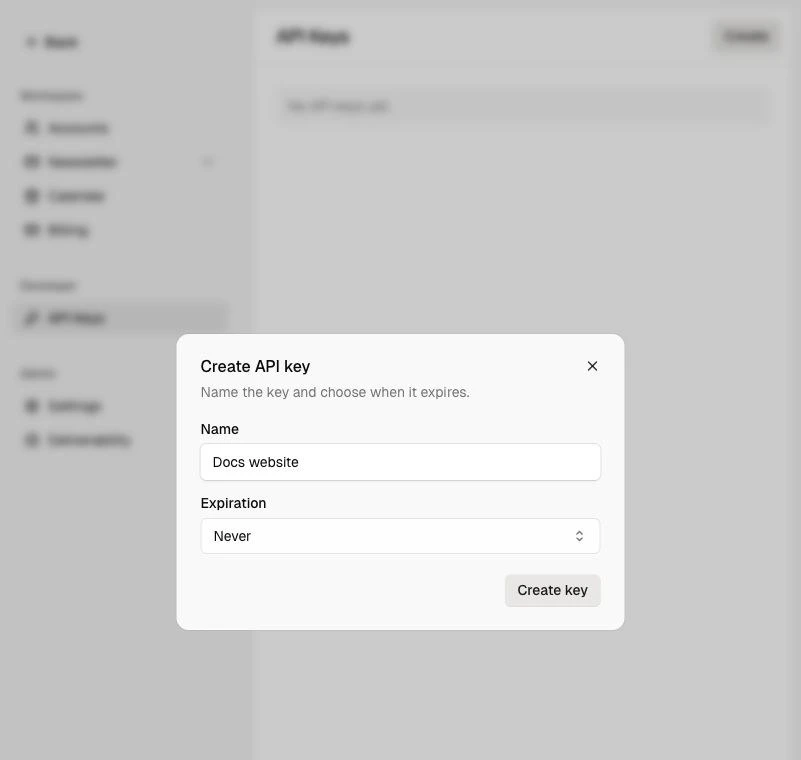 6. Click **Create key**.
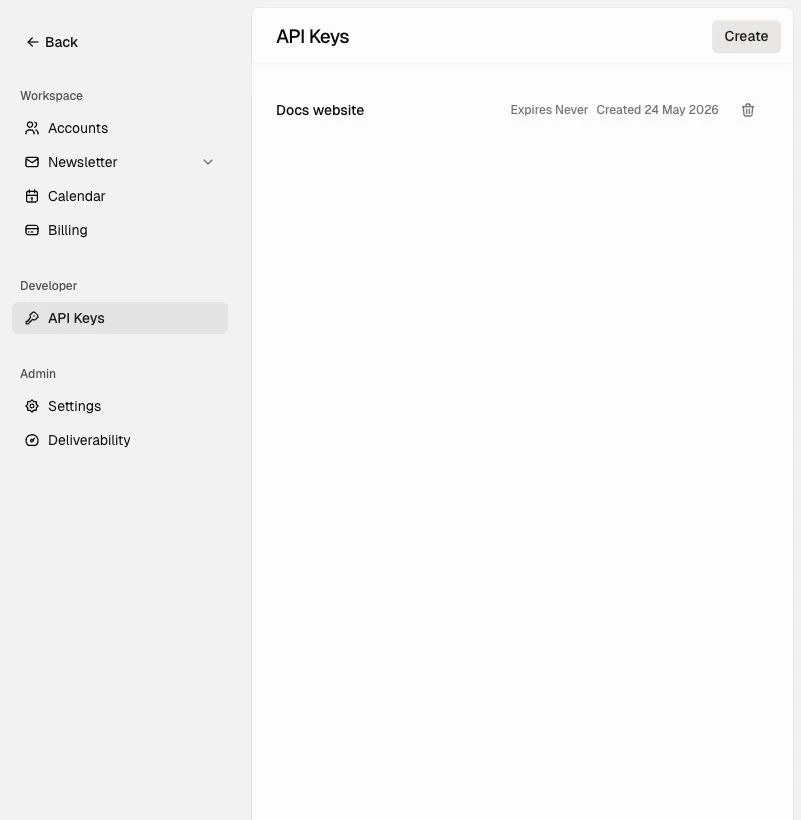
7. Copy the key immediately. Maito shows the secret only once.
6. Click **Create key**.
7. Copy the key immediately. Maito shows the secret only once.
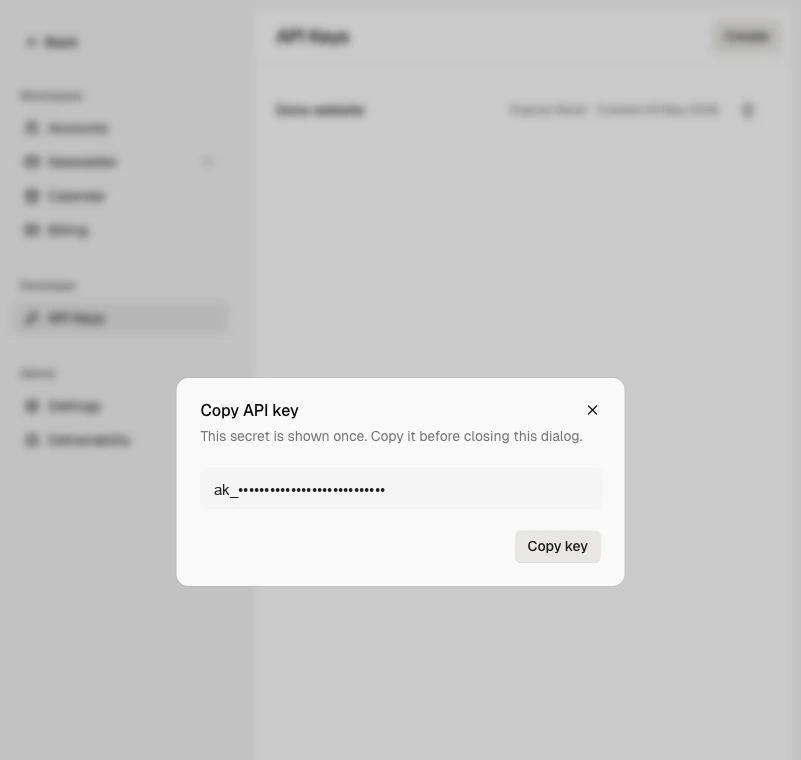 8. Store the key in a server-side secret manager or environment variable.
 When making a request, add the API key to the `Authorization` header:
```http theme={null}
Authorization: Bearer
```
Example:
```bash theme={null}
curl "https://api.getmaito.com/v1/newsletter/issues?status=sent&isPublic=true" \
-H "Authorization: Bearer $MAITO_API_KEY" \
-H "Accept: application/json"
```
See [Authentication](/docs/api-reference/authentication) for more details.
## API Reference
The base URL for the API is:
```text theme={null}
https://api.getmaito.com/v1
```
Read and update newsletter publication settings.
Create subscribers, import subscribers, list subscribers, and block or delete subscribers.
List, create, and delete newsletter categories for archives and custom websites.
List public issues, get an issue by slug, create drafts, update issues, and send issues.
Read newsletter overview analytics and issue-level analytics.
Upload media assets for newsletter workflows.
## Custom Newsletter Website
Custom newsletter websites should use a backend proxy that keeps the Maito API key server-side.
Use these endpoints for the website experience:
* [List issues](/docs/api-reference/newsletter/list-issues): `GET /v1/newsletter/issues?status=sent&isPublic=true`
* [Get issue by slug](/docs/api-reference/newsletter/get-issue-by-slug): `GET /v1/newsletter/issues/by-slug/{issueSlug}`
* [List categories](/docs/api-reference/newsletter/list-categories): `GET /v1/newsletter/categories`
* [Create subscriber](/docs/api-reference/newsletter/create-subscriber): `POST /v1/newsletter/subscribers`
See [Custom Newsletter Website](/docs/documentation/custom-newsletter-website) for the full implementation guide and AI-builder prompt.
## Responses
Successful responses use this shape:
```json theme={null}
{
"ok": true,
"data": {}
}
```
Errors use this shape:
```json theme={null}
{
"ok": false,
"error": {
"code": "VALIDATION_ERROR",
"message": "Invalid request."
}
}
```
See [Responses and errors](/docs/api-reference/responses) for status code behavior.
## Scope
API keys are supported only on external integration endpoints. They are not a general way to call every route used by the Maito app.
Current customer API groups:
* Newsletter
* Media uploads
Documents, drafts, calendar, social OAuth flows, billing, onboarding, chat, queue internals, app-only routes, provider callbacks, hosted-site internals, and infrastructure health checks are not customer API contracts.
## Rate Limits
Rate limits are not finalized yet.
Until a formal policy is published, integrations should:
* Avoid polling loops
* Retry `5xx` responses with exponential backoff
* Treat `429` as a signal to slow down
* Prefer batching where an endpoint supports it
## OpenAPI Spec
Use the OpenAPI document to inspect the full request and response schemas:
* JSON: [/openapi.json](/docs/openapi.json)
When making a request, add the API key to the `Authorization` header:
```http theme={null}
Authorization: Bearer
```
Example:
```bash theme={null}
curl "https://api.getmaito.com/v1/newsletter/issues?status=sent&isPublic=true" \
-H "Authorization: Bearer $MAITO_API_KEY" \
-H "Accept: application/json"
```
See [Authentication](/docs/api-reference/authentication) for more details.
## API Reference
The base URL for the API is:
```text theme={null}
https://api.getmaito.com/v1
```
Read and update newsletter publication settings.
Create subscribers, import subscribers, list subscribers, and block or delete subscribers.
List, create, and delete newsletter categories for archives and custom websites.
List public issues, get an issue by slug, create drafts, update issues, and send issues.
Read newsletter overview analytics and issue-level analytics.
Upload media assets for newsletter workflows.
## Custom Newsletter Website
Custom newsletter websites should use a backend proxy that keeps the Maito API key server-side.
Use these endpoints for the website experience:
* [List issues](/docs/api-reference/newsletter/list-issues): `GET /v1/newsletter/issues?status=sent&isPublic=true`
* [Get issue by slug](/docs/api-reference/newsletter/get-issue-by-slug): `GET /v1/newsletter/issues/by-slug/{issueSlug}`
* [List categories](/docs/api-reference/newsletter/list-categories): `GET /v1/newsletter/categories`
* [Create subscriber](/docs/api-reference/newsletter/create-subscriber): `POST /v1/newsletter/subscribers`
See [Custom Newsletter Website](/docs/documentation/custom-newsletter-website) for the full implementation guide and AI-builder prompt.
## Responses
Successful responses use this shape:
```json theme={null}
{
"ok": true,
"data": {}
}
```
Errors use this shape:
```json theme={null}
{
"ok": false,
"error": {
"code": "VALIDATION_ERROR",
"message": "Invalid request."
}
}
```
See [Responses and errors](/docs/api-reference/responses) for status code behavior.
## Scope
API keys are supported only on external integration endpoints. They are not a general way to call every route used by the Maito app.
Current customer API groups:
* Newsletter
* Media uploads
Documents, drafts, calendar, social OAuth flows, billing, onboarding, chat, queue internals, app-only routes, provider callbacks, hosted-site internals, and infrastructure health checks are not customer API contracts.
## Rate Limits
Rate limits are not finalized yet.
Until a formal policy is published, integrations should:
* Avoid polling loops
* Retry `5xx` responses with exponential backoff
* Treat `429` as a signal to slow down
* Prefer batching where an endpoint supports it
## OpenAPI Spec
Use the OpenAPI document to inspect the full request and response schemas:
* JSON: [/openapi.json](/docs/openapi.json)